Better Intra
UI and UX improvements for 42 Intra v3: logtime calendar, cluster map tools, custom profiles, shortcuts, friends widget, a students directory, evaluation notifications (Discord & mobile), and more.
⚡ Quick Start
To install this extension, click the buttons below or visit the Releases page.


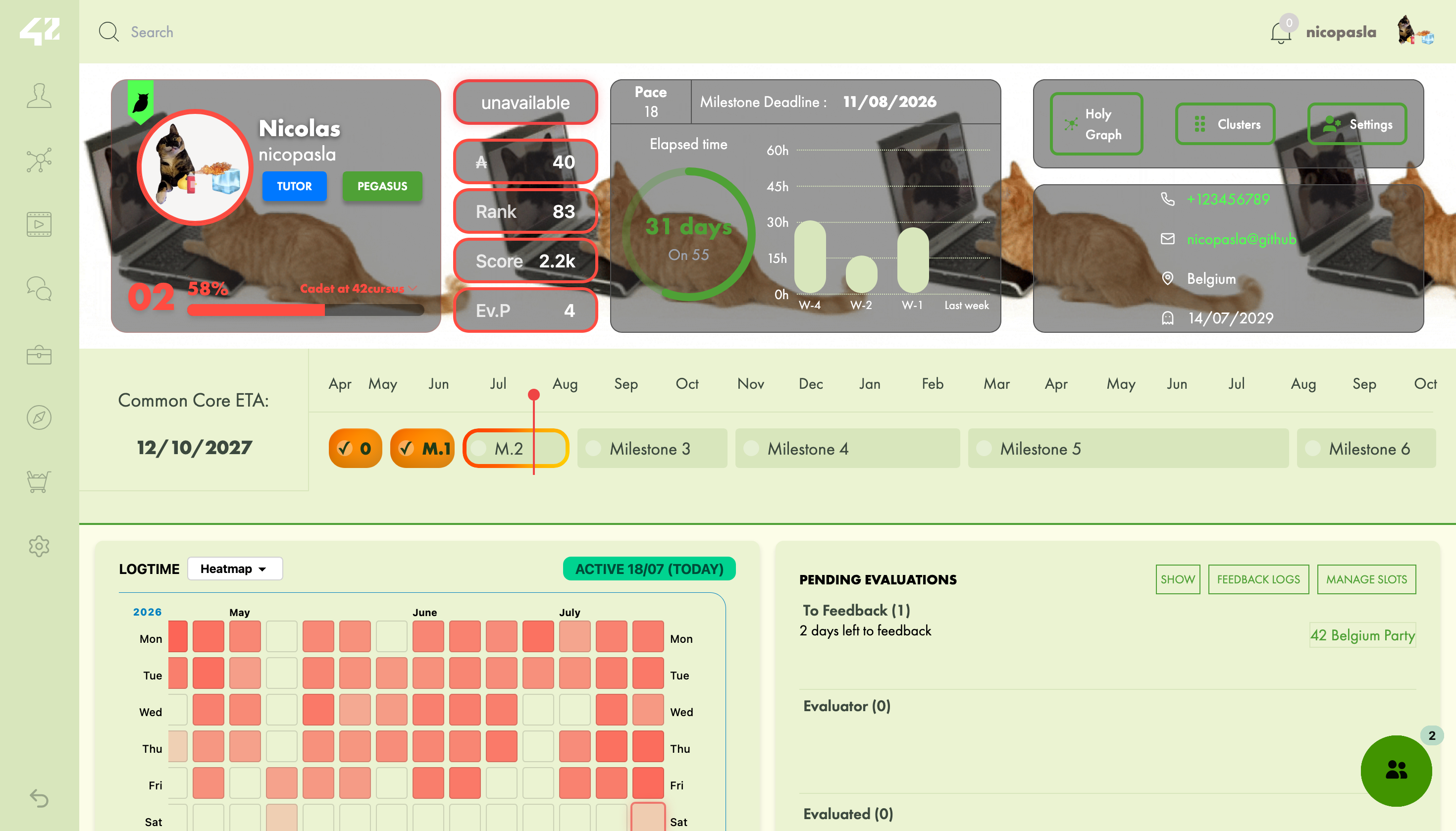
Better Intra with the lemonade light theme
Support

Donations help cover the cost of the Cloudflare Workers Pro plan ($5/month) and the domain name, which power the cloud sync backend, the 42 API used, evaluation notifications, friends feature,…
Features
☁️ marked features require cloud sync / 42 sign-in.
🇧🇪 marked features are Belgium-only.
👤 Profile
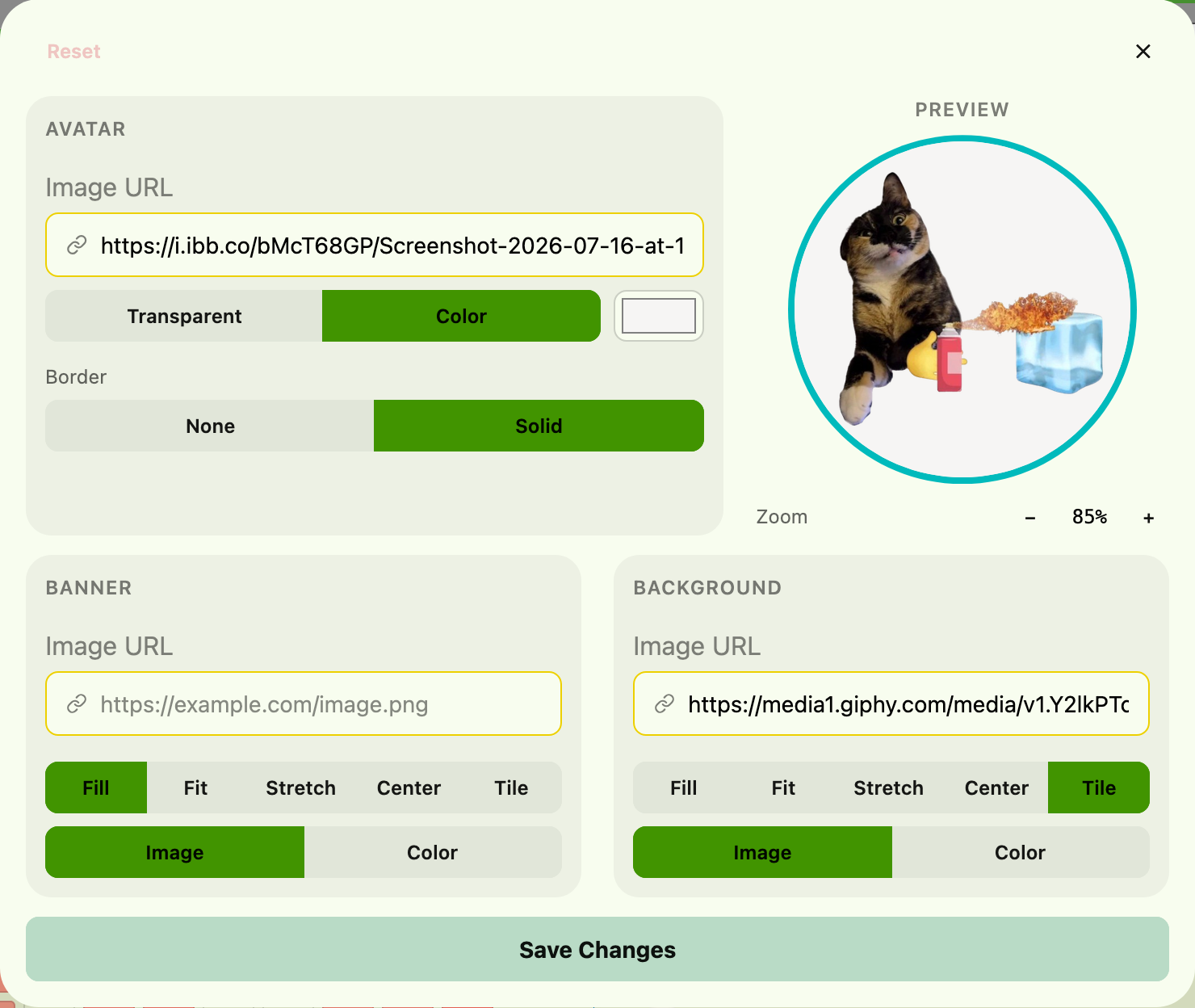
- Custom visuals — set your own avatar, banner, and background images with mode options (fill, fit, stretch, center, tile). Click your avatar on your profile page to open the customisation panel with zoom slider (50–200%), click-and-drag repositioning, and mouse wheel zoom on the preview. See a live preview as you type the image URL.
- Image upload — upload images directly from your device via the Upload button next to each URL input. Images are stored in Cloudflare R2 with unguessable UUID URLs (not publicly discoverable).
- Link history — the last 10 URLs used for each field are shown as thumbnail image badges below the input. Click a badge to reuse a link, or click the ✕ badge to clear history. History is synced to cloud.
- Avatar decoration — toggle a transparent or solid-colour background behind your avatar with a colour picker. Add an optional solid border around your avatar.
- Visuals sync — your custom images are visible to other Better Intra users when they view your profile. Click any custom avatar to see the original one. ☁️
- Instant profile visuals — custom avatars, banners, and backgrounds are cached locally. After the first visit they appear instantly on any profile. Changes refresh silently in the background.
- Dashboard cards — reorder your profile cards (Logtime, Agenda, Evaluations, Projects, Achievements) by dragging them. Hide cards you don’t need.
- Project badges — projects in the Projects card appear as colour-coded badges (green for normal projects, red for exams) for quick visual scanning.
- Event filtering — filter your agenda by campus and event type (exam, conference, workshop, hackathon, etc.).
- Slots redirection — automatically redirects slots and defense links for Belgium campus users when your campus is detected. 🇧🇪
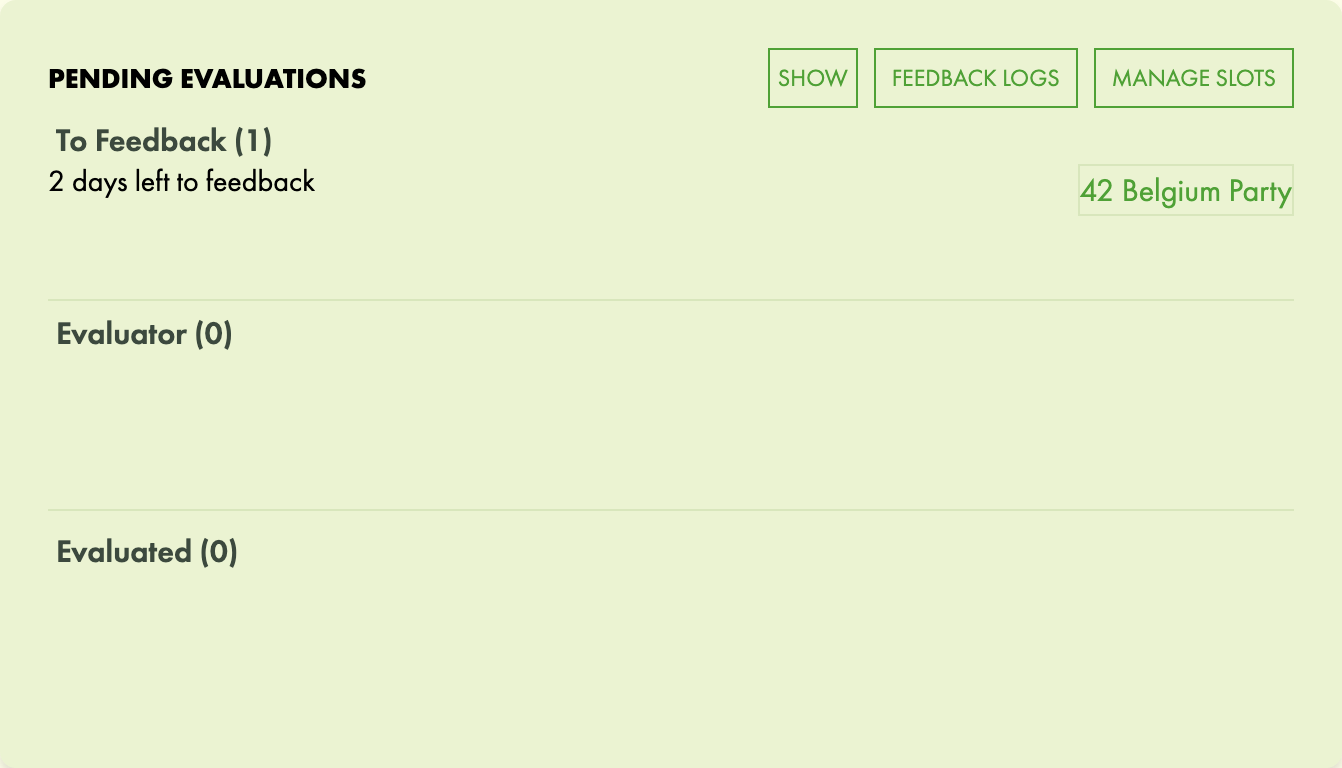
- Sort pending evaluations — pending evaluations are sorted into “To Feedback”, “Evaluator”, and “Evaluated” sections with counts for easier browsing.
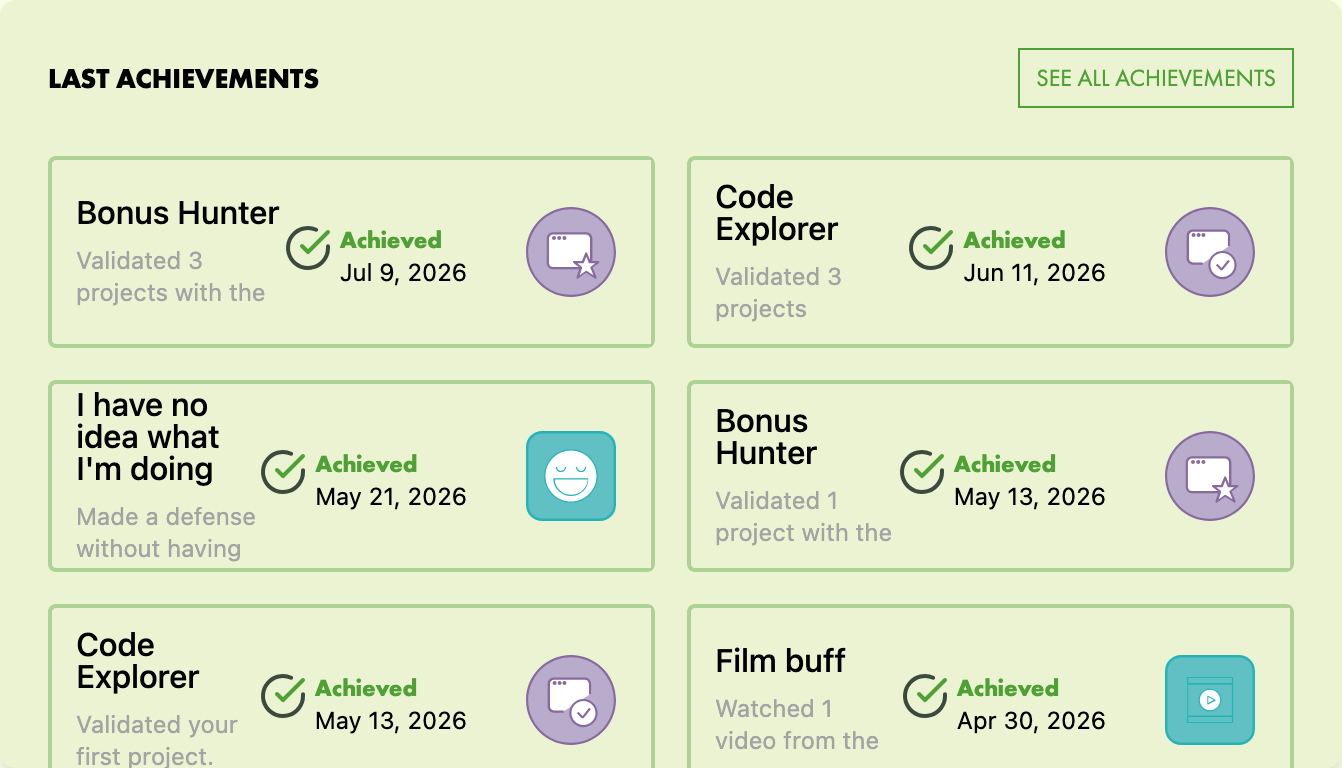
- Achievement milestones — completed achievements get a subtle animated glow.
- Full achievements list — replaces the native “Last Achievements” card with a scrollable list of all achievements, sorted by newest first.
- Completed projects (marks) — the Projects card lists all your graded projects with dates and scores. Multi-attempt projects expand to show each attempt. Sort by newest or oldest first. Projects flagged “Outstanding” during evaluation get a ⭐ next to their name — visible on any user’s profile. ☁️
- Star total badge — on your own profile, the Projects card header shows the total count of ⭐ Outstanding projects.
- Download Transcript — a “Transcript” button appears in the Projects card letting you download your academic transcript as a PDF. Choose your cursus, language, and year range. Only available for Belgium campus. 🇧🇪 ☁️
- Projects sort — sort the projects list on any user’s profile by name or date, with toggleable ascending/descending order.
- Freeze alerts — a freeze card appears on profiles of frozen students, with a live countdown to the end of the freeze.
- Clickable seat label — click someone’s seat on their profile to open the cluster map with their seat highlighted and pulsating.
- Thursday Roulette — a dashboard card showing the current profile’s roulette win history, total points, and a live countdown to the next Friday 8:00 draw. Works on any user’s profile. ☁️
- Correction stats — a dashboard card showing your monthly evaluation history as a corrector: total evaluations, failures, and success percentage. ☁️
- Moulinette robot icons — on project corrected pages, the default moulinette image is replaced with a robot icon (normal for passed, broken for failed).
- Info card badges — wallet, level, rank, score, and seat shown as coloured badges below the profile header. Can be hidden in settings.
- Campus flags — the campus badge shows a country flag emoji matching your campus location.
- Nav bar custom avatar — your custom avatar also appears in the site navigation bar.
- Phoenix/Pegasus tracker — Hover the Pegasus/Phoenix badges for a progress popover showing days and hours done vs required.
- Wallet shop link — clicking the wallet badge opens the 42 shop in a new tab.
📅 Logtime
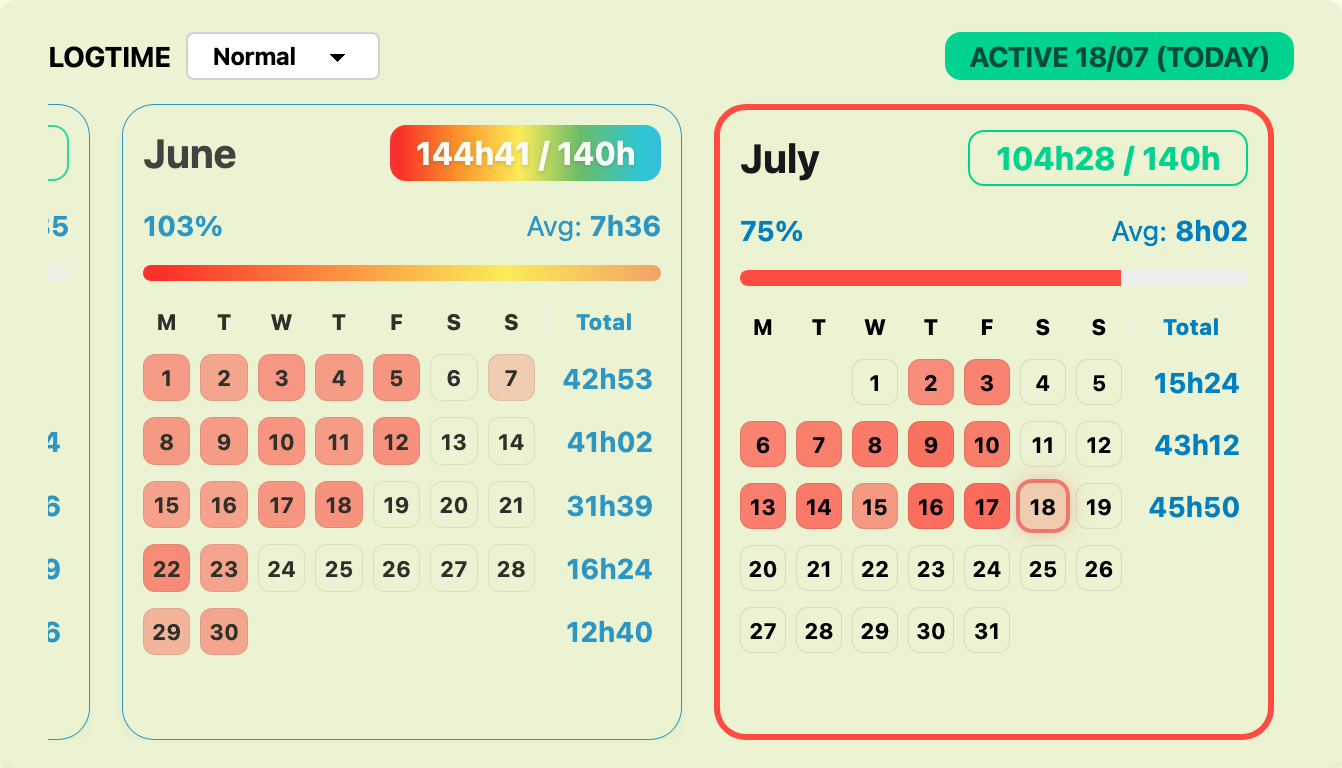
Replaces the default logtime view with a monthly calendar showing your logged hours at a glance.
- Monthly calendar — each month shows your hours as a colour-coded grid. Darker means more hours per day. See weekly totals on the right.
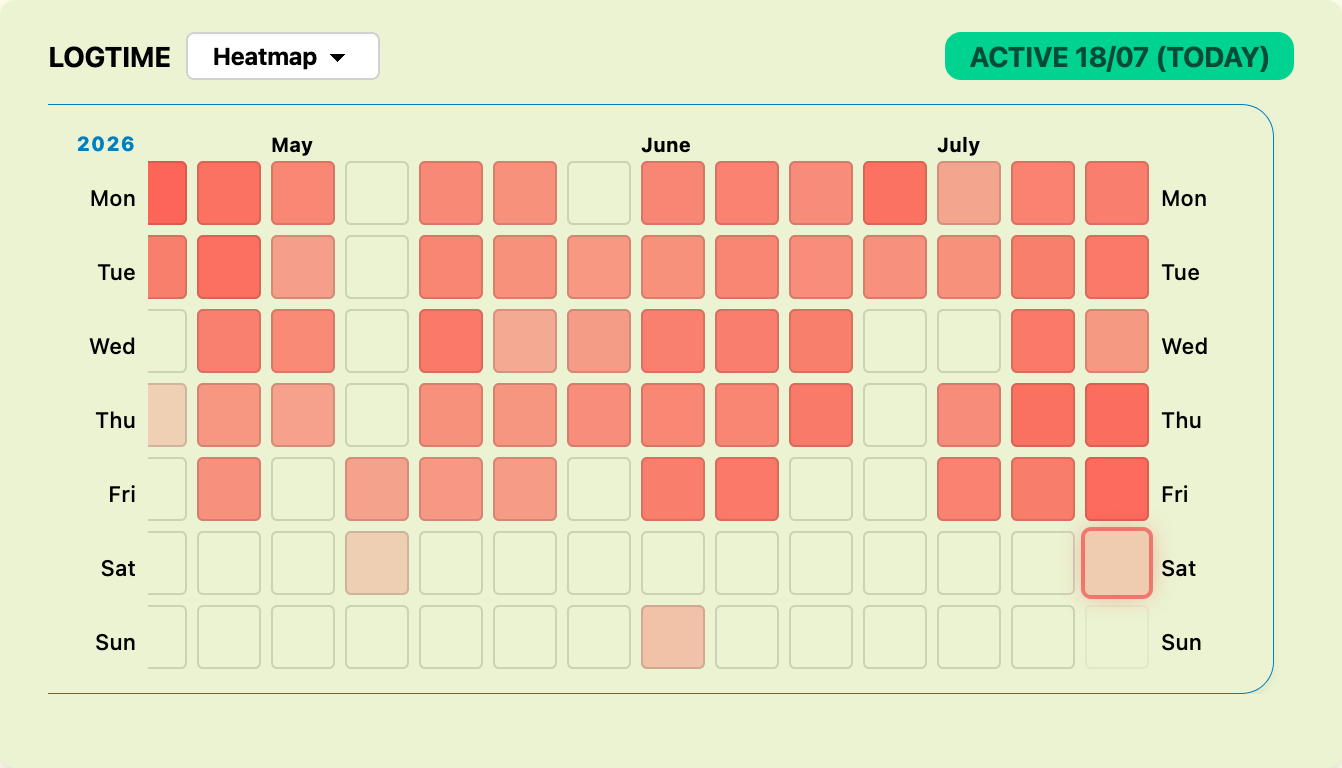
- Heatmap view — a GitHub-style contribution heatmap showing your full logtime history. Each day is a cell coloured by intensity. Month labels show totals, and a “today” highlight keeps you oriented.
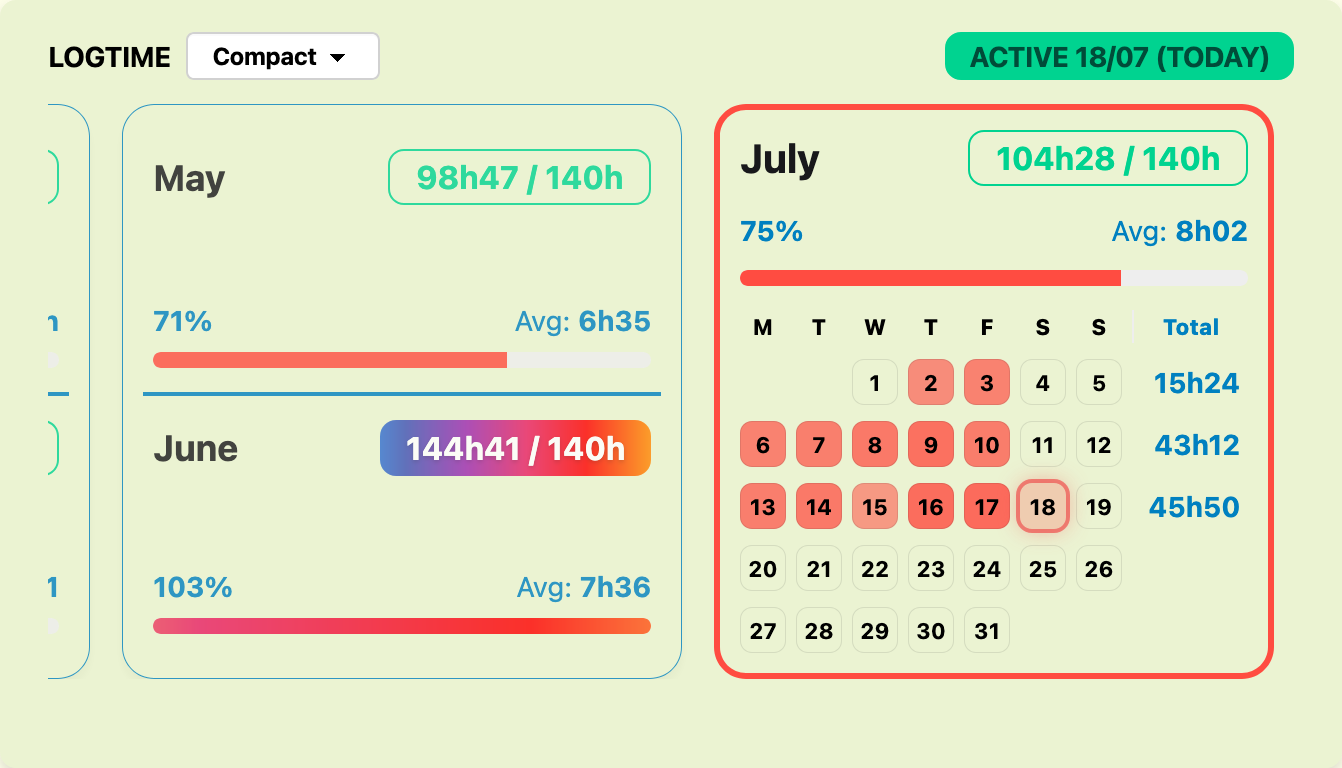
- Compact view — past months appear as summary cards with progress bars and totals. The current month still uses the full calendar grid. Months are grouped in pairs for a denser layout.
- Scroll through months — click and drag, or use your mouse wheel.
- Goal tracking — set a target (default 140h/month). See a progress bar, your percentage, and remaining hours on hover.
- Full historical logtime — click “Load older months” to fetch complete logtime history. Requires cloud sync.
- Daily average — average hours per active day.
- Last active label — shows when you were last seen. Choose between a date, “2 days ago”, or both.
- Emoji mode — pick an emoji and set how much it’s “worth”. Track your earnings with a monthly cap.
- Custom colours — pick your own accent colour for the calendar and labels.
- Calendar events overlay — synced 42 events appear as markers on your logtime calendar days.
🗺️ Cluster Map Dialog
A live interactive cluster map popup accessible from profile quick-link buttons.
- Real-time seat occupancy — see user avatars overlaid on occupied seats with login tooltips. Polls every minute with a “Updated X min ago” indicator.
- Seat counts — a badge on each cluster tab shows taken/total occupancy (e.g.
C1 14/42). A smaller badge in the map corner shows the same for the current cluster. - Wi-Fi tab — a dedicated tab showing who’s currently connected via Wi-Fi, with avatars, logins, connection time, and a live user count.
- Zoom controls — zoom in/out (30%–300%) with + and - buttons, or reset to 100% with a single button. The current zoom percentage is displayed.
- Cluster room tabs — switch between cluster rooms within the dialog.
- Campus selector — switch between 42 campuses from within the dialog; the map loads the selected campus’s clusters.
- Campus clock — a live clock showing the selected campus’s local time.
- Click to visit profile — click any occupied seat to open that user’s profile, optionally in a new tab.
- Directional markers — small in-map indicators showing which way each chair faces. Toggle them on/off from the in-dialog settings.
- Default cluster — set your preferred cluster and the dialog opens on it.
- Works for all campuses — the live map, directional markers, and default cluster are available for every 42 campus.
🧑🎓 Students ☁️ 🇧🇪
☁️ marked since reading the list requires 42 sign-in via cloud sync.
A students directory for the Belgium campus, opened from the users icon in the intra sidebar.
- Students / Future students / Pisciners tabs — browse all 42 cursus students, the upcoming April/October intakes, or a specific piscine session (by month + year).
- Piscine calendar — when no specific piscine is chosen, the Pisciners tab shows every year grouped with the months that have piscines; pick one to fetch that session.
- Grid & list views — toggle between a 4-per-row card grid and a compact list.
- Sort — by name or cursus start date, with click-to-invert direction.
- Search — filter by name or login.
- Click to copy login — click any student’s login to copy it to the clipboard.
- Filters — a filter menu lets you narrow by pool month, pool year, and status (active, inactive, blackholed, frozen, alumni).
- Status badges — blackholed (skull), frozen (snowflake), and alumni (graduation cap) indicators; inactive students are dimmed.
- Level display — levels are shown for 42 cursus students.
- Infinite scroll — the list loads more entries automatically as you scroll.
- Counts — a totals badge (e.g. “1,075 students”) plus an “active students” count.
- Pool & entry dates — per-student badges showing piscine pool (e.g.
02/26) and cursus entry date. - Belgium-only — the sidebar button only appears for Belgium campus (ID 12).
🏫 Campus Detection
Your 42 campus is detected automatically — no manual setup.
- Passive detection — visiting your profile page silently detects your campus from the intra’s own API. Your detected campus appears as a badge in the Advanced settings tab.
- Contributing — add your campus by submitting cluster name/ID data via a pull request to the campuses/ directory.
🔗 Shortcuts
Quick-access links shown as colourful buttons on your profile page.
- Up to 8 links, each with a name, URL, custom colour, and optional emoji.
- Buttons show the site’s icon automatically if you don’t set an emoji.
- Text colour (black or white) is chosen automatically for readability.
- Drag to reorder — drag the preview buttons in the settings panel to rearrange your links.
- Hide important links — optionally hide the default Intra navigation links to give shortcuts the full width.
- Alignment — when important links are hidden, align your shortcuts left, center, or right.
- Set them up in the settings panel.
📅 Calendar Sync ☁️
Subscribe to your 42 events in any calendar app with a private ICS subscription URL.
- ICS subscription — generate a private ICS URL compatible with Google Calendar, Apple Calendar, Outlook, and more.
- QR code — scan the code in the Calendar tab for easy mobile setup.
- Auto-sync — events refresh automatically on each profile visit.
- Configure from the Calendar tab in the Settings Hub.
🔔 Notifications ☁️
Get evaluation reminders when your evaluations change state — via Discord DM or the mobile app.
- Discord DMs — receive alerts in your DMs via the Better Intra bot when an evaluation is booked or when correcteds are revealed. Connect your Discord account from the Notifications hub tab — auto-joins Le Bassin server to enable direct messages.
- Mobile push — install the mobile app (PWA) to get the same evaluation notifications on your phone, plus your dashboard, friends, and students. Scan the QR code in the Notifications tab to install it.
- Quiet hours — pause Discord notifications during specified hours (e.g. 22:00 to 08:00) so you’re not disturbed at night.
- Configure from the Notifications tab in the Settings Hub.
📱 Mobile App (PWA) ☁️
An installable mobile web app at mobile.betterintra.com.
- Install to your home screen — from Safari use Share → Add to Home Screen; from Chrome use the menu → Install app.
- Evaluation push notifications — the same booked/revealed alerts as Discord, delivered to your phone.
- Dashboard, profile, friends, and students — a mobile-friendly view of your 42 data, including the Belgium students directory.
- Easy install — the extension’s Settings Hub → Notifications tab shows a QR code and link to install it.
🎨 Theme
- Dark / Light — swap between modes from the hub footer using the sun/moon toggle button.
- 30+ theme presets — pick from light themes (garden, cupcake, retro, emerald, etc.) and dark themes (synthwave, dracula, cyberpunk, forest, neon, soap, citrus, and more). Recolours profile badges, sidebar, progress bars, and accents across the intra.
- Fonts — apply a preset font to all of Intra, or import your own font file.
📢 Announcements
A top banner on profile pages shows official Better Intra announcements.
- Levels — announcements are colour-coded Notice, Warning, or Critical.
- Action links — an announcement can include links that open in a new tab.
- Dismissible — click ✕ to hide an announcement; it stays dismissed for the current session.
- Instant load — the banner is fetched from the worker and cached for 5 minutes.
☁️ Account (Cloud Sync)
- Authenticate with your 42 Intra account via OAuth through the Cloudflare Worker.
- Push — upload all local settings to the cloud.
- Pull — download and apply settings from the cloud to this device.
-
Auto-push — toggle in the hub footer. When enabled, clicking Reload sends all settings to the cloud before refreshing the page.
- Disconnect / Wipe All Data — logout or erase all cloud-stored data.
- Share visuals — synced avatar, banner, and background become visible to other Better Intra users viewing your profile.
- Account panel is in the extension popup (click the extension icon).
- Non-Intra placeholder — when opened outside of an Intra page, the popup shows a friendly placeholder instead of the account panel.
👥 Friends ☁️
A friends panel accessible from a button in the bottom-right corner of the page.
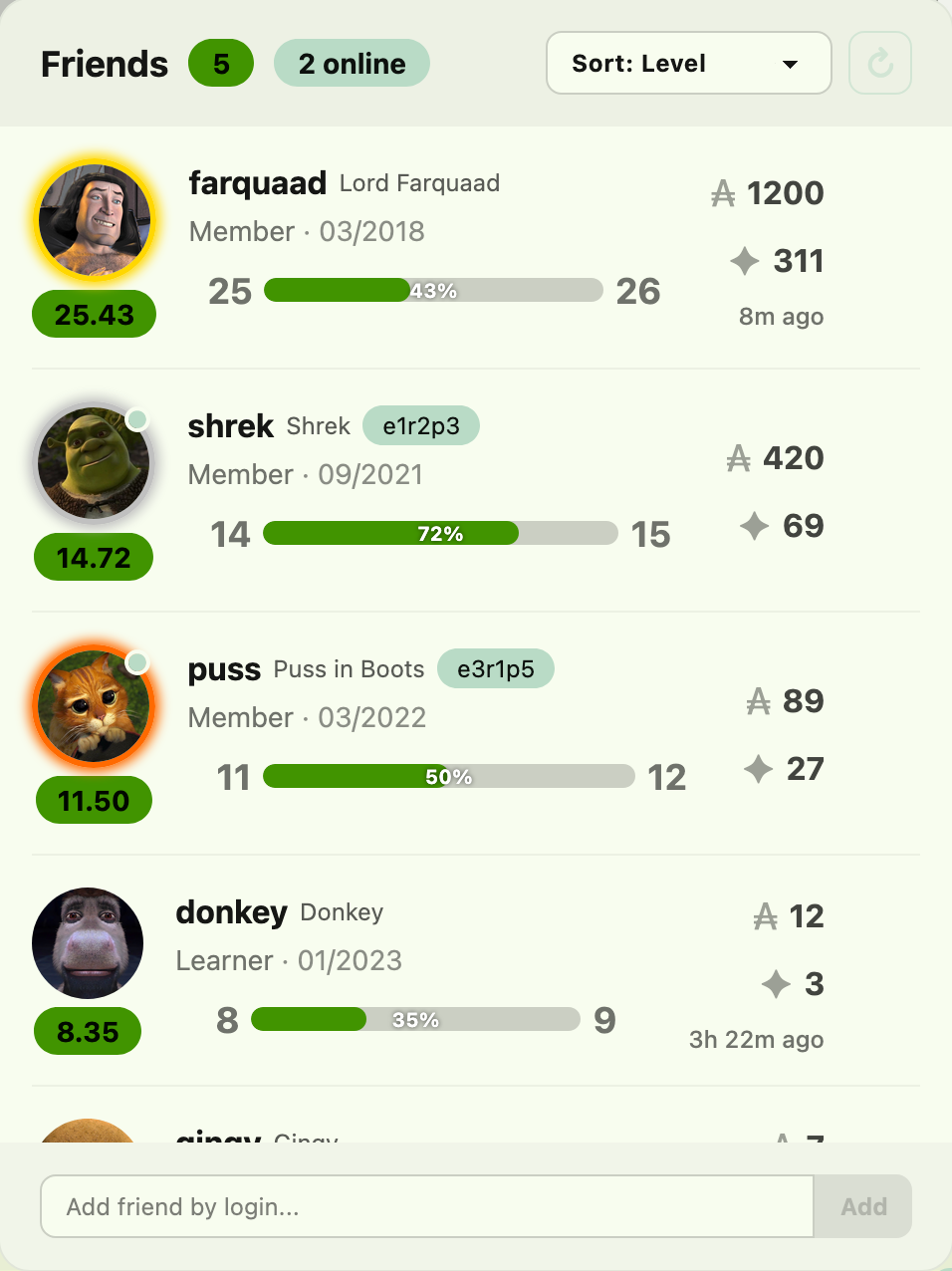
- Add friends by login using the input at the bottom of the panel.
- See each friend’s avatar, level bar, wallet, correction points, and online status.
- Profile friend button — a button appears next to the role dropdown on any user’s profile, letting you follow or unfollow without opening the full widget.
- Click a friend’s location badge to open the cluster map with their seat highlighted.
- Sort by: online status, name, level, wallet, or evaluation points.
- Medal borders — the top 3 friends (by chosen sort order) get gold, silver, and bronze borders.
- The button shows a badge with the number of friends currently online.
- Data refreshes every 30 seconds; tap the refresh button to force an update.
⚙️ Settings Hub
- All extension settings in one place.
- Click the gear icon on the intra sidebar to open it.
- Search settings — a search box in the hub header filters settings across all tabs and jumps to the first match.
- Tabs: Appearance (Theme + Logtime), Profile, Add-ons, Shortcuts, Notifications, Calendar, Advanced, Account, About.
- Turn features on/off individually, or reset a feature’s settings to default.
- Drag to reorder dashboard cards — in the Profile tab, drag and drop cards (Logtime, Agenda, Evaluations, Projects, Achievements, Thursday Roulette) to reorder them on the dashboard. Toggle visibility with the eye icon, or reset to default order.
- The footer bar shows your theme toggle, cloud connection status, and last sync badge. Manual/Auto push is configured in the Account tab (and the welcome screen), defaulting to Manual.
- Backup & Restore — export all settings to a timestamped JSON file, or import from a previous backup. In the Advanced tab.
- Reset all data — wipe all Better Intra settings and start fresh. In the Advanced tab.
- Auto-detected campus — shown as a badge in the Advanced tab.
- Open links in new tab — external links from Better Intra open in a new tab. In the Advanced tab.
- Custom tooltips — Better Intra’s own styled tooltips replace native ones across the extension for a consistent look.
Screenshots

Uninstall
Go to about:addons in Firefox, find Better Intra and click Remove.
Disclaimer
This is a personal project. It modifies the appearance of 42 Intra and adds UI improvements (logtime tracking, shortcuts, etc.). It can break at any time due to intra code changes. Use at your own risk.
Built with:
- TypeScript (Core logic)
- Vite (Bundler & asset pipeline)
- DaisyUI & Tailwind CSS (UI components & settings modal)
- GitHub Actions (CI/CD for automated builds, versioning, and changelogs)
- Gemini and Copilot Student (Documentation & Optimization)
- Cloudflare Workers, KV & D1 (Serverless backend for cloud sync, eval tracking & notifications)
better-intra-worker/— separate Cloudflare Worker handling cloud sync, evaluation state tracking, project map, and Discord botbetter-intra-pwa/— installable mobile web app (PWA) at mobile.betterintra.com- 42 API (OAuth2) (Secure user identification and authentication)
- Discord API (Bot for evaluation notifications)
- OpenCode + DeepSeek V4 Pro (AI coding agent)
- Font Awesome & Lucide (SVG icons)
- Fonts from Google Fonts (Noto Sans, Inter, Roboto, Open Sans, Source Sans 3, Work Sans, Manrope, Atkinson Hyperlegible Next, Ubuntu)
- 42 logo from Wikimedia Commons
- Robot icons from Wikimedia Commons (normal and broken)
- Intra v2 dark mode from Improved Intra
- Leak and bug fixes ported from MaiToxx/BetterIntraRemake (MIT)


Compatibility
| Browser | Support | Note |
|---|---|---|
| Firefox | ✅ | Main target |
| Chrome | ✅ | Supported |
| Brave | ✅ | Supported |
| Mobile (PWA) | ✅ | mobile.betterintra.com |
Privacy
See the full Privacy Policy.
- All settings are stored locally via
chrome.storage.local. Nothing is sent anywhere unless you explicitly enable cloud sync. - Cloud sync (optional): your settings are stored in a Cloudflare Worker KV under a hash of your login, so they can be synced across devices. The worker retains invocation logs for debugging (not used for tracking).
- Friends widget (optional, requires cloud sync): friend logins are stored locally and also included in your synced settings in KV. The worker additionally caches friend user IDs and online status in KV to reduce 42 API calls.
- Logtime data is read from the intra page directly — it never leaves your browser.
- Other users’ profiles: when visiting another user’s profile, their public custom visuals (avatar, banner, background) are fetched from the Cloudflare Worker if they use Better Intra. No data is sent to third parties.
- Permissions requested:
storage(save settings),activeTab(interact with 42 Intra pages), and access to the extension’s Cloudflare Worker for optional sync features. No analytics, tracking, or advertising.
Development
See DEVELOPMENT.md.